

Sharing WiFi from your Android or iPhone is a very useful feature, especially with the increasing demand for internet access. Check out the instructions in the following article!
 |
Many people are currently interested in sharing Wi-Fi from their Android or iPhone phones for quick and convenient use. However, they are still unsure how to do it. To answer this question, the following article will provide detailed instructions.
How to easily create a WiFi hotspot from your iPhone.
If you're an iFan and want to share your internet connection with family and friends, don't worry. Try this method of creating a WiFi hotspot from your iPhone using the instructions below:
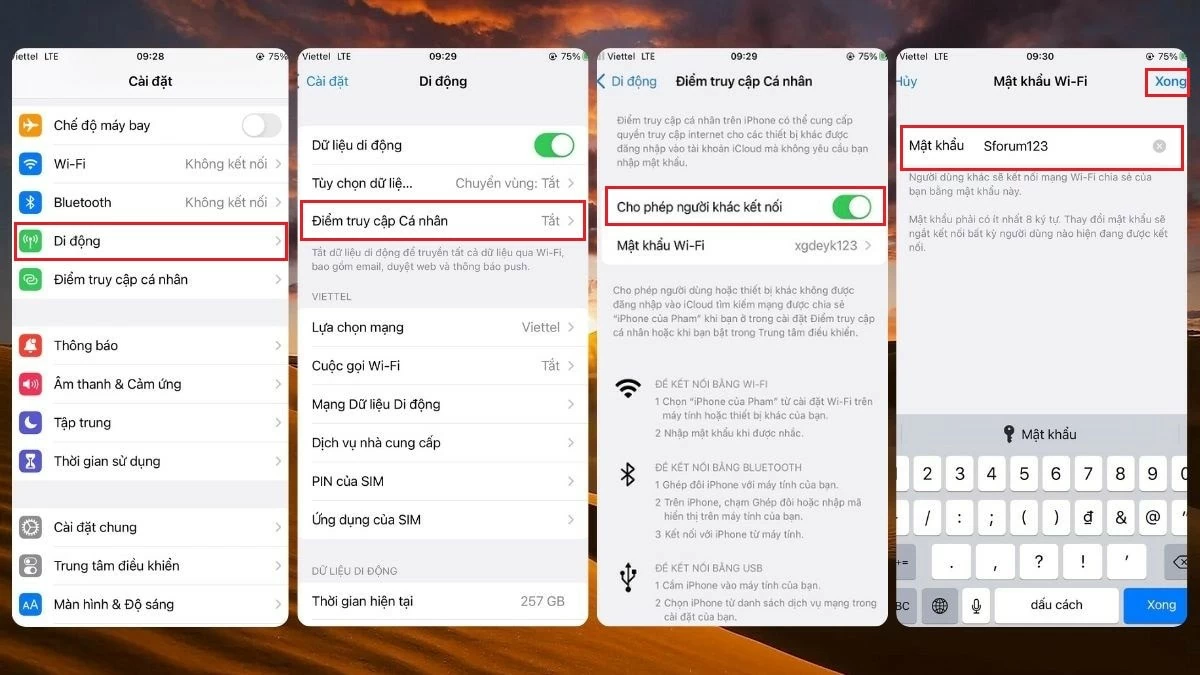
Step 1: To share your internet connection on your iPhone, open the Settings app and select Cellular .
Step 2: Here, click on the Personal Hotspot option and drag the slider to the right to enable the "Allow others to connect" function.
Step 3: To change to an easy-to-remember password, tap on WiFi Password , enter the new password, and tap Done to complete the process.
 |
Instructions on how to easily create a WiFi hotspot from your Android phone.
Not only iPhones, but many Android phones now also allow you to quickly create a WiFi hotspot. You can refer to the instructions below on how to create a WiFi hotspot from your Android phone, depending on your device.
Instructions on how to properly create a WiFi hotspot from a Xiaomi phone.
Xiaomi is a brand known for its user-friendly features, and creating a WiFi hotspot on a Xiaomi phone is no exception. Here's a simple guide to help you do it:
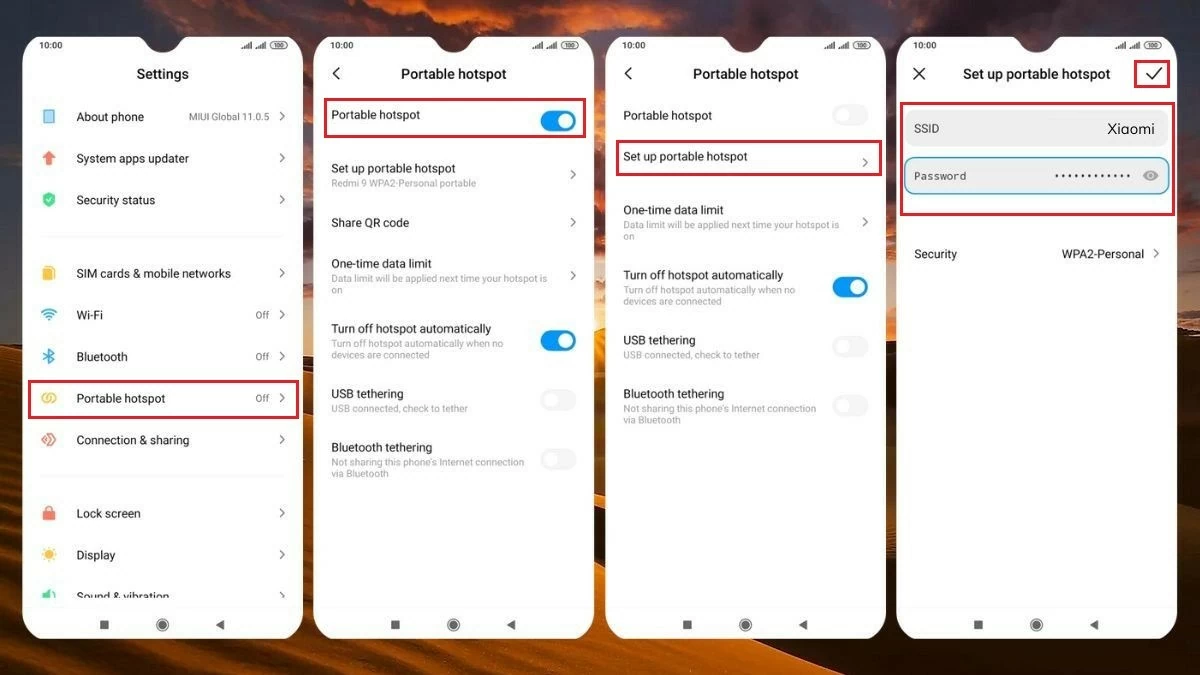
Step 1 : On your Xiaomi phone, open Settings and select Portable Hotspot.
Step 2 : In the Portable hotspot section, toggle the switch to the right to activate the mobile WiFi hotspot.
Step 3: If the mobile network name and password seem complicated, select Set up portable hotspot .
Step 4: Next, you can change the name and password, then click the checkmark in the upper right corner to save the settings.
 |
Instructions on how to create a WiFi hotspot from a Realme phone.
Sharing WiFi from a Realme Android phone isn't too complicated. However, not everyone knows how to enable this feature on their Realme phone. To share your WiFi network from your Realme phone, follow the instructions below:
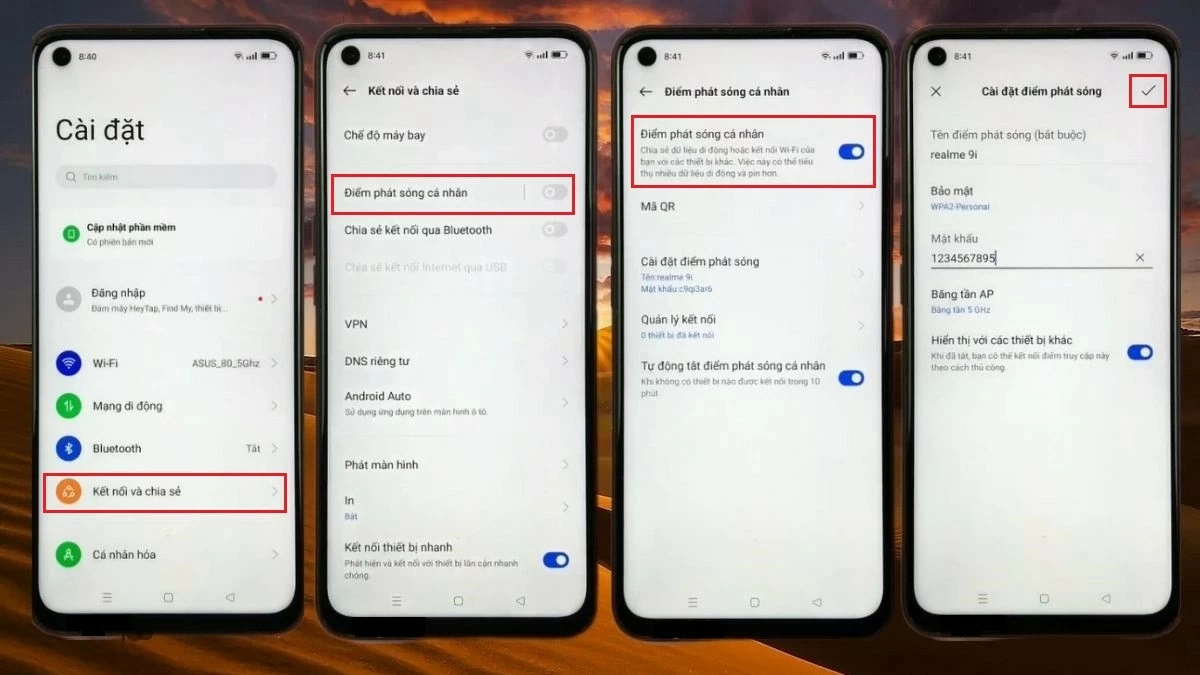
Step 1: On your Realme phone, open the Settings app and go to Connection & sharing.
Step 2: Tap on Portable hotspot to activate your mobile WiFi network, then toggle the Portable hotspot switch to the right.
Step 3: Here, you can edit the WiFi name (SSID field) and password (Password field) to make them easier to remember.
Step 4: Finally, simply tap the checkmark in the upper right corner of the screen to save the settings, and you can now share your WiFi with your friends.
 |
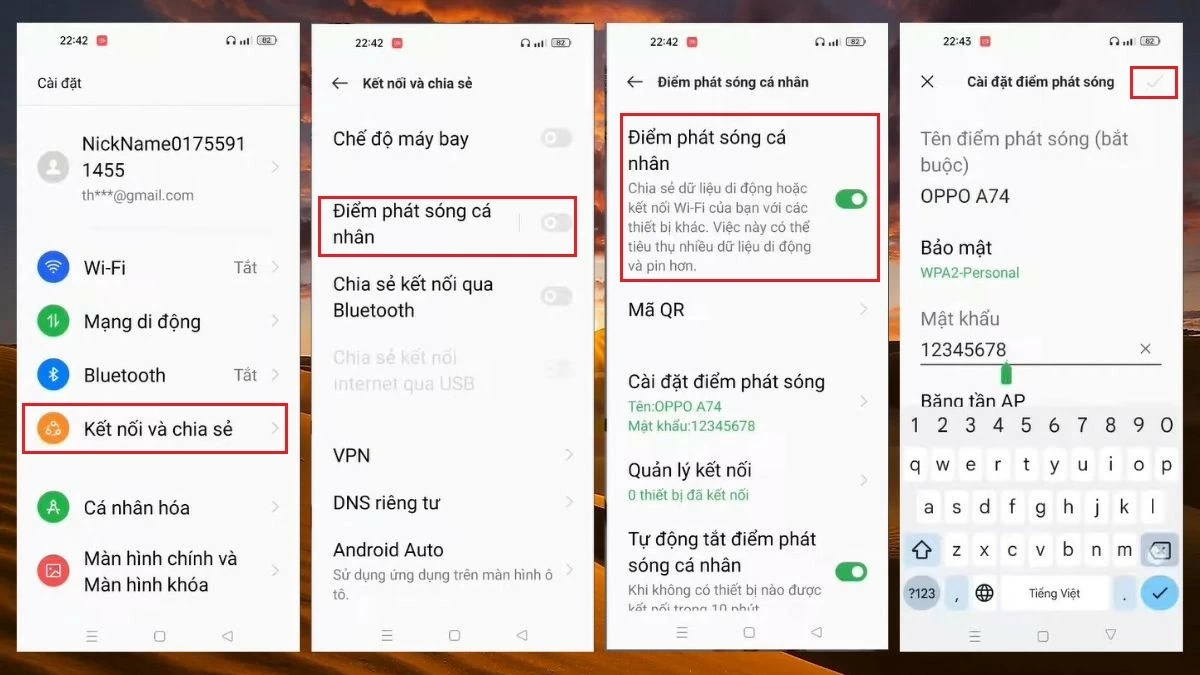
Guide on how to effectively create a WiFi hotspot from your OPPO phone.
If you're using an OPPO phone and want to share your WiFi, knowing how to broadcast the connection is crucial. To do this from your OPPO phone, refer to the basic instructions below:
Step 1: Open the Settings app on your OPPO phone and select the Connections and Sharing option.
Step 2: Select the Personal Hotspot option, then toggle the switch for the Personal Hotspot option to the right to activate the WiFi broadcasting feature.
Step 3 : To change the WiFi name and password, go to the Name and Password settings to make the changes.
Step 4 : After you have finished renaming, simply click the checkmark to save the settings.
 |
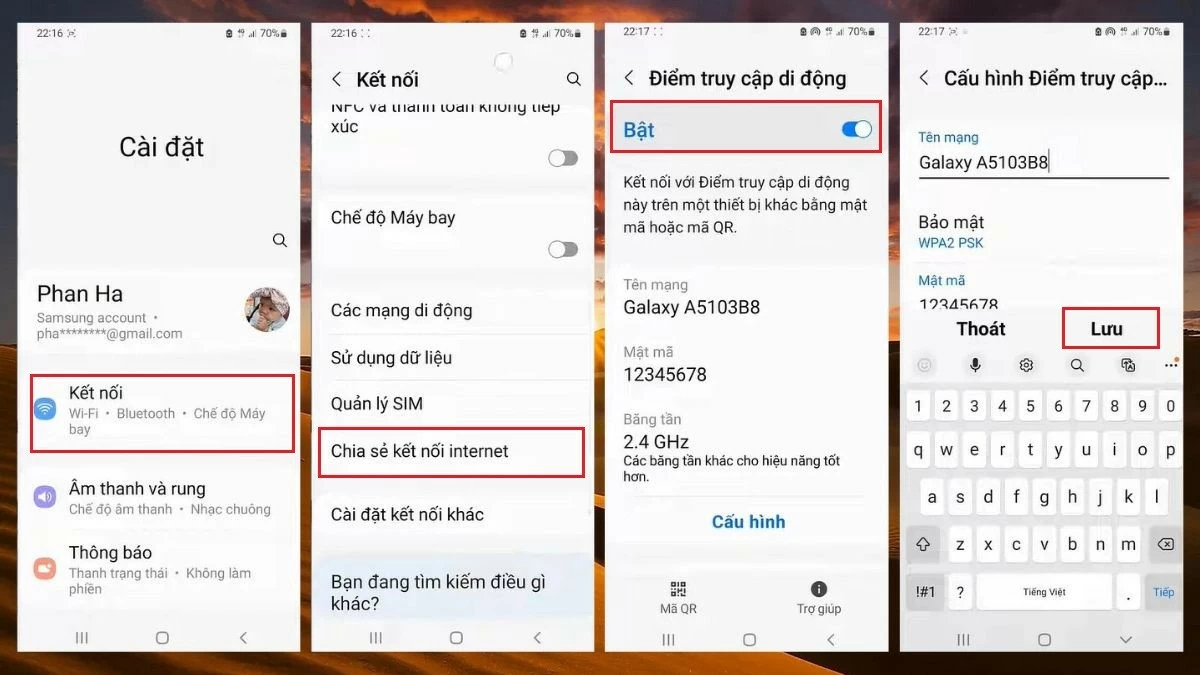
Guide on how to quickly create a WiFi hotspot from your Samsung phone.
Generally, the method for sharing WiFi on Samsung phones can vary depending on the model. However, most steps for sharing WiFi on Samsung phones follow the instructions below:
Step 1 : On your Samsung phone, open the Settings app.
Step 2 : In this section, select the Connections category and turn on Mobile Data .
Step 3: After turning on Mobile Data , select Share Internet Connection and toggle the switch at Mobile Hotspot .
Step 4: In this section, you can change the name and password of the WiFi network broadcast from your phone. Set a network name and password that are easy to remember, then press Save to complete.
 |
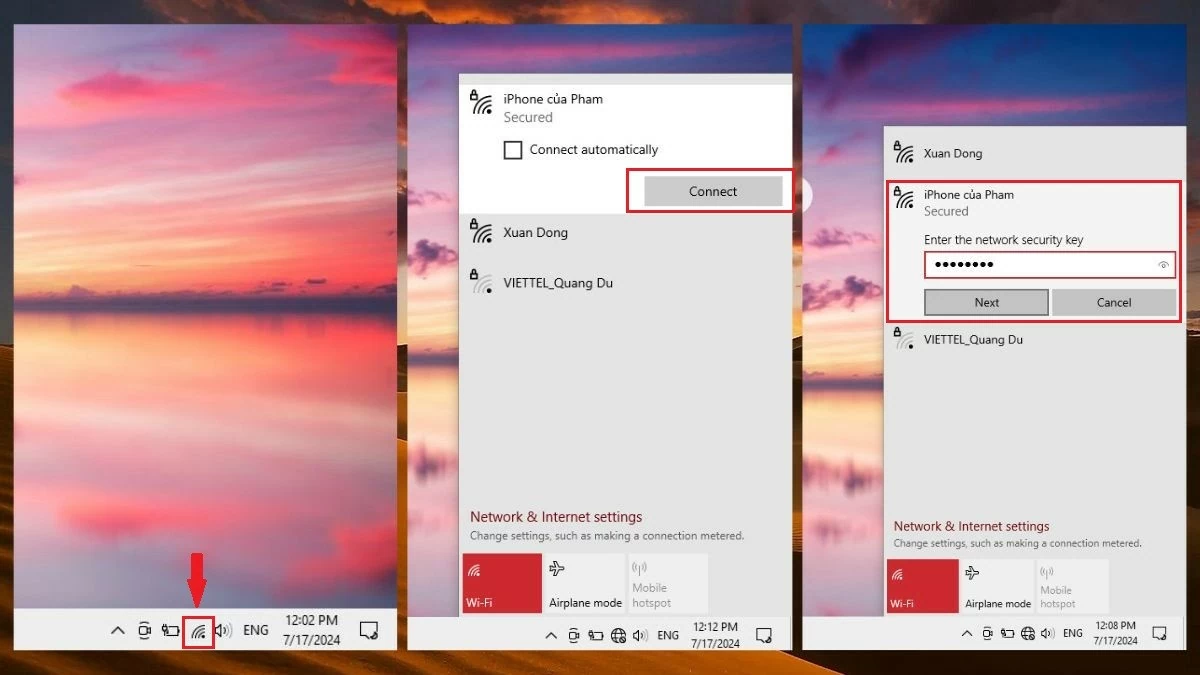
Instructions on how to share WiFi from your phone to your personal computer.
If you need internet access on your computer but don't have WiFi available, you can share WiFi from your phone to your computer. First, turn on mobile data and share WiFi on your phone as instructed above. Then, open your computer and connect to your phone's WiFi by following these steps:
Step 1: In the upper right corner of your computer screen, click the WiFi icon.
Step 2: Next, find and select the name of the WiFi network broadcast from your phone, then tap Connect.
Step 3 : Click Next to start your computer connecting to the shared WiFi network.
 |
Note: Sharing WiFi from an Android or iOS phone consumes more power, leading to faster battery drain. If you don't need this feature, turn it off to conserve battery life.
Previously, I compiled simple ways to share WiFi from Android phones, iPhones, and from phones to computers. Hopefully, this article has helped you understand each step for your device. To find more useful tech tips, please check back regularly for updates.
Source: https://baoquocte.vn/cap-nhat-ngay-cach-phat-wifi-tu-dien-thoai-iphone-android-moi-nhat-280823.html


























![[Photo] New recruits happily exercise their right to vote at their unit.](https://vphoto.vietnam.vn/thumb/1200x675/vietnam/resource/IMAGE/2026/03/14/1773473286544_stug0337-6388-jpg.webp)










































































Comment (0)