

Normally you need to download software to check your laptop's battery drain, but try this simple method that doesn't require any software to check your Windows 10 laptop's battery health.
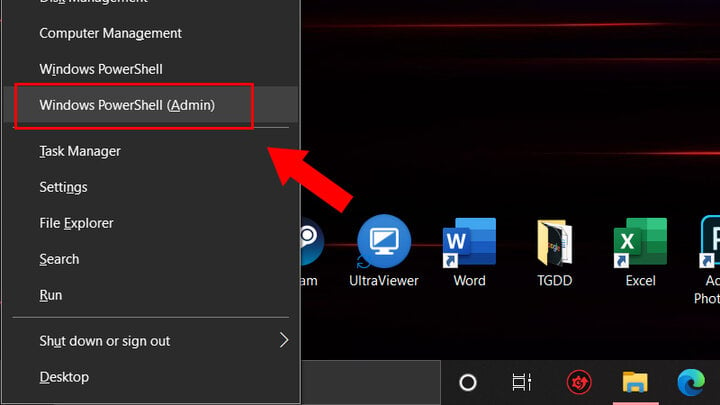
Step 1: Go to Windows PowerShell settings.
First, press the Windows + X key combination to access "Windows PowerShell", then double-click to select "Windows PowerShell" (Admin) from the menu.
Step 2: Enter the command
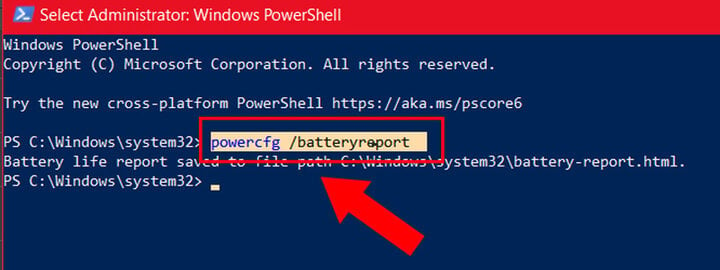
Copy and paste the command "powercfg /batteryreport" and press "Enter".
Step 3: Find the instructions
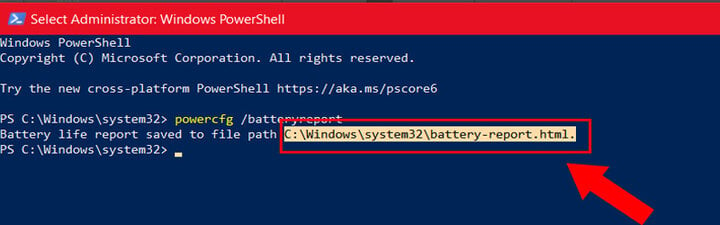
Here, the system will guide you to the location where your current battery status information is stored. The address you need is right after the "Battery life report saved to file path" section. Click on that address, then press Ctrl + C to copy it and paste it into the search bar under "My Desktop", "This PC", etc., then press Enter.
Step 4: Check your battery status.
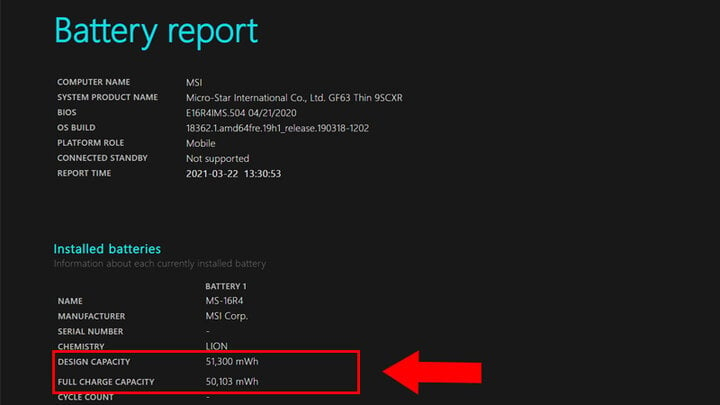
After pressing Enter, you will be taken to a browser window displaying the battery status; please look for the "Installed batteries" section.
Here, check the "Design Capacity" and "Full Charge Capacity". "Design Capacity" shows the initial capacity of the battery when it was new. "Full Charge Capacity" is the current capacity of the battery. If the difference between these two numbers is around 15000-2000mAh, it means your battery has degraded significantly. Remember to keep your device plugged in and charging regularly, or consider buying a new battery.
Step 5: View other information
Below is some other information displayed in the Battery Report table. This is also useful in addition to checking your battery's health.
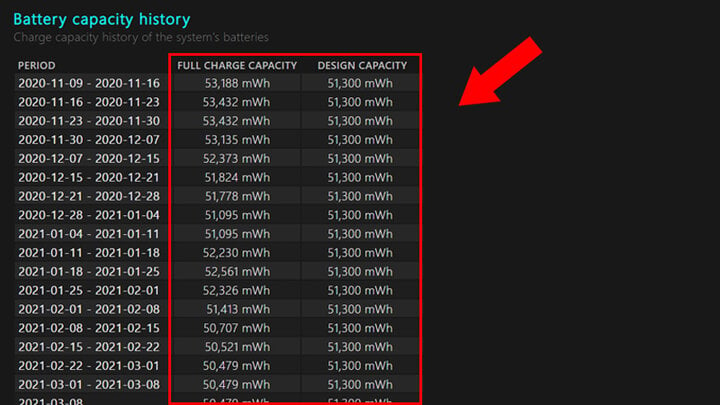
Battery Capacity History
This section will show you how your battery capacity has changed over time. Design Capacity refers to the initial battery capacity, while Full Charge is the current full charge capacity; this capacity will decrease over time.
Battery Life Estimates
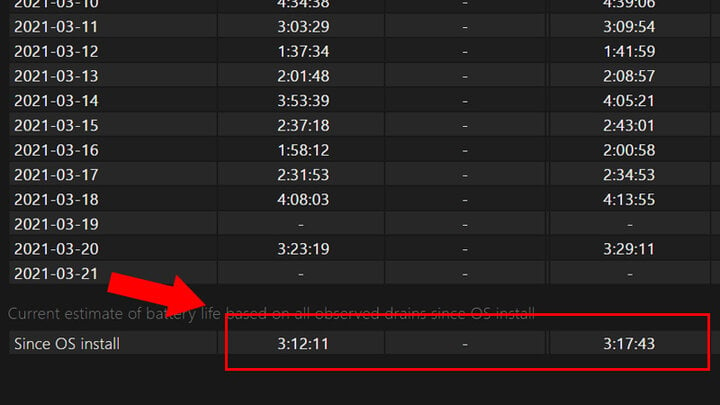
This section estimates the battery life of the device. The Design Capacity column shows how long the battery can be used with the initial charge. At Full Charge, on the other hand, shows the actual battery life you can use.
Scroll to the last line; it will show the current usage time. In this case, my computer should have approximately 3:17:43 hours of usage time in Design Capacity, but currently it's only 3:12:11 hours.
Usage Statistics
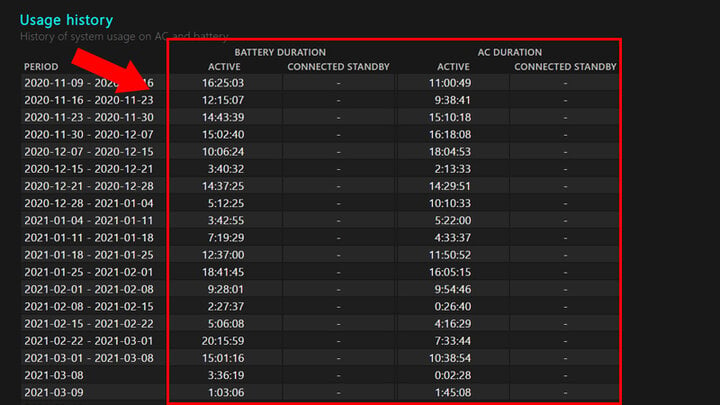
This section will display battery usage time for different periods, calculated using both battery power (Battery Duration) and AC charging time (AC Duration).
Source

![[Photo] Two flights successfully landed and took off at Long Thanh Airport.](/_next/image?url=https%3A%2F%2Fvphoto.vietnam.vn%2Fthumb%2F1200x675%2Fvietnam%2Fresource%2FIMAGE%2F2025%2F12%2F15%2F1765808718882_ndo_br_img-8897-resize-5807-jpg.webp&w=3840&q=75)





































































































Comment (0)