

Phone ringtones have become an important part of our daily lives. They are a tool that helps us quickly recognize incoming calls and messages. However, choosing a song or sound that suits you is not a simple task. Follow the steps below to set a great ringtone for your iPhone.
How to set a ringtone on iPhone using your phone.
Method 1: Set a ringtone for your iPhone using the iTunes Store on your phone.
A quick note before trying this method: you must link your Momo Wallet or credit card to your Apple ID account, as this will incur additional fees for purchasing music to use as ringtones.
Step 1: Go to "Sound" & Touch: in "Settings", select "Ringtone", then select "Ringtone Store".
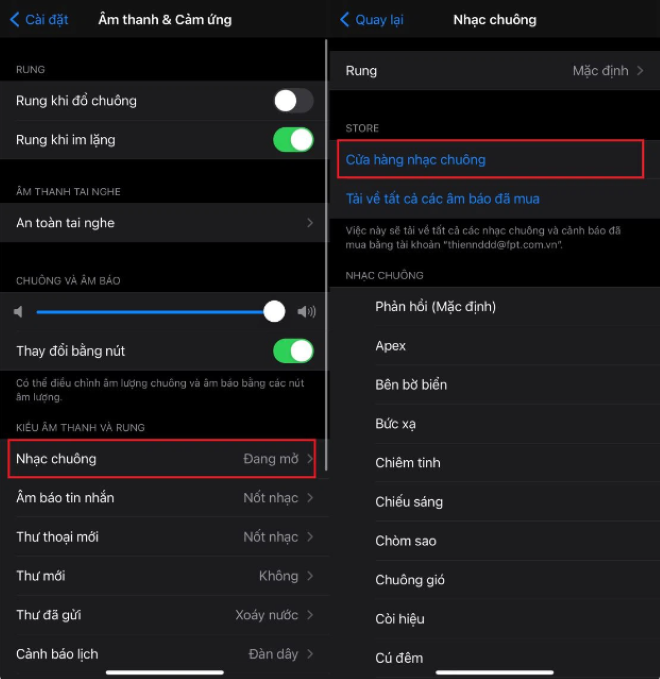
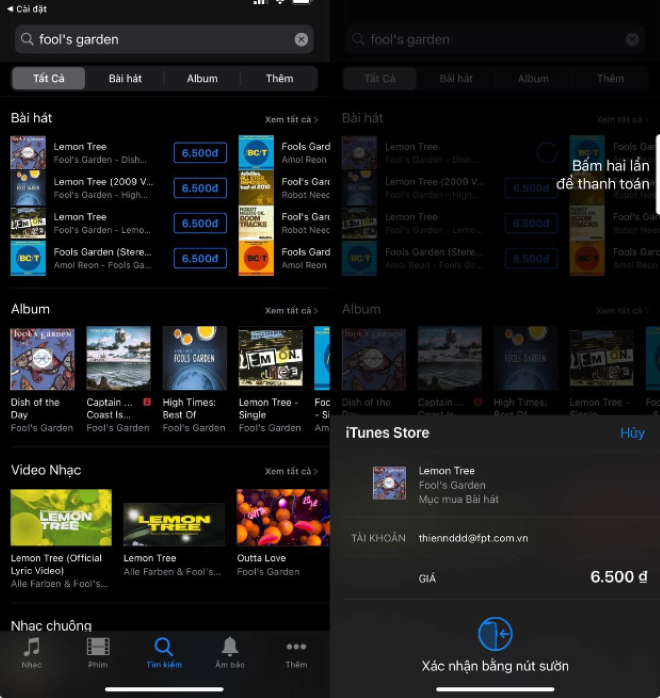
Step 2: The iTunes Store interface will appear. You can purchase ringtones and notification sounds in the tones section, or buy any song here. Song and ringtone prices range from 3,500 VND to 6,500 VND per song. Then, confirm payment to proceed with the purchase.
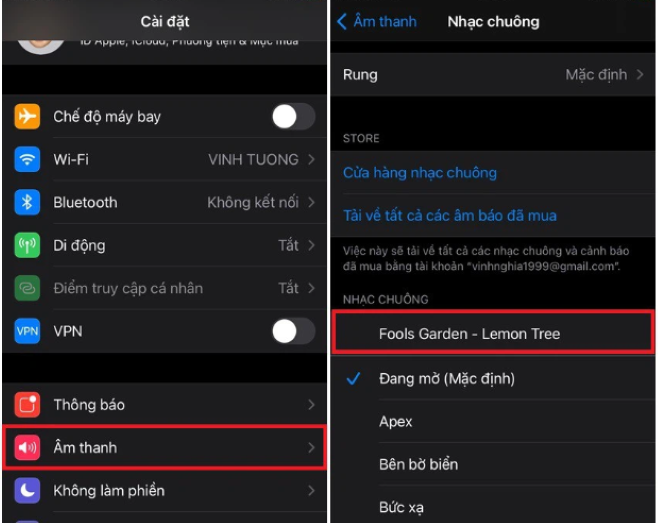
Step 3: After making your purchase, go back to the "Ringtone" section and you will see the song you just bought. Select it to complete the process.
Method 2: Set a ringtone for your iPhone using your phone with the Documents and GarageBand apps.
The GarageBand app is probably familiar to iPhone users, but not everyone knows how to use it to set ringtones. This isn't a simple process for many users, but with the instructions below, you'll find it easier.
First, you need to download Document and GarageBand to your phone from the App Store, then follow the steps below:
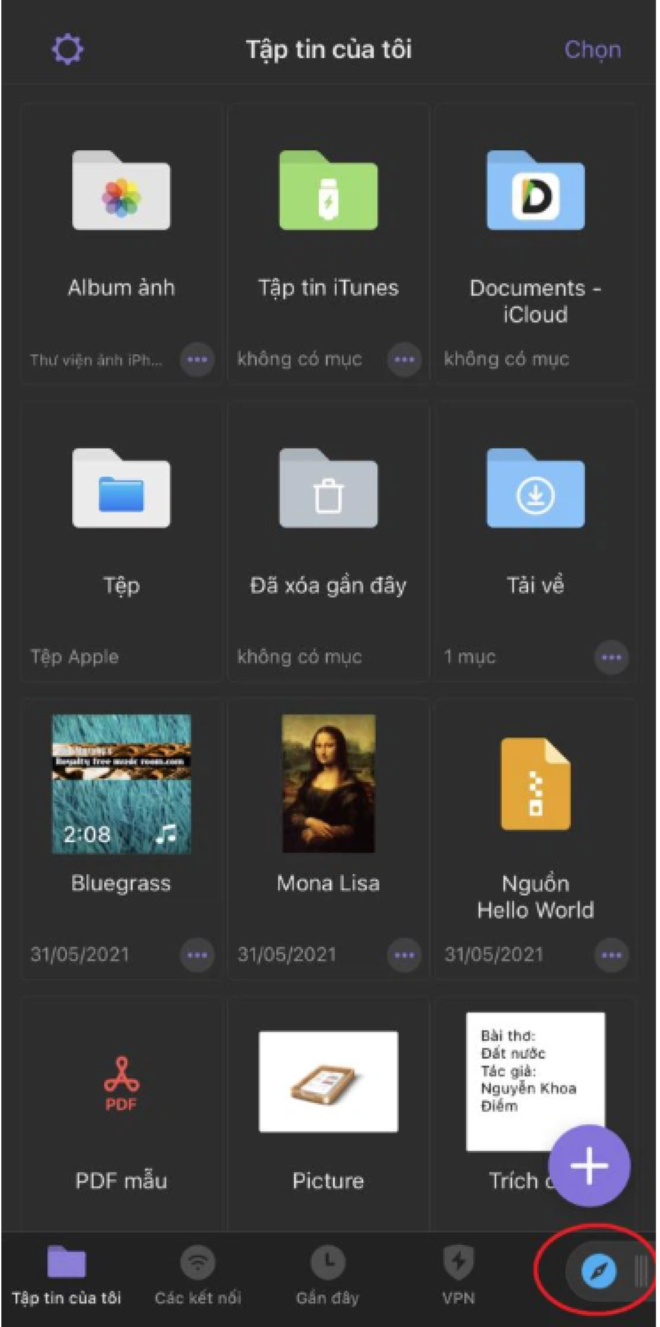
Step 1: Go to Documents, find the compass icon in the bottom right corner, then drag it to the left and enter the website "chiasenhac.vn" in the URL field.
Step 2: Search for the song you want and select the "Download" icon, then choose the music quality and click "Download", then click "Done" to start the download.
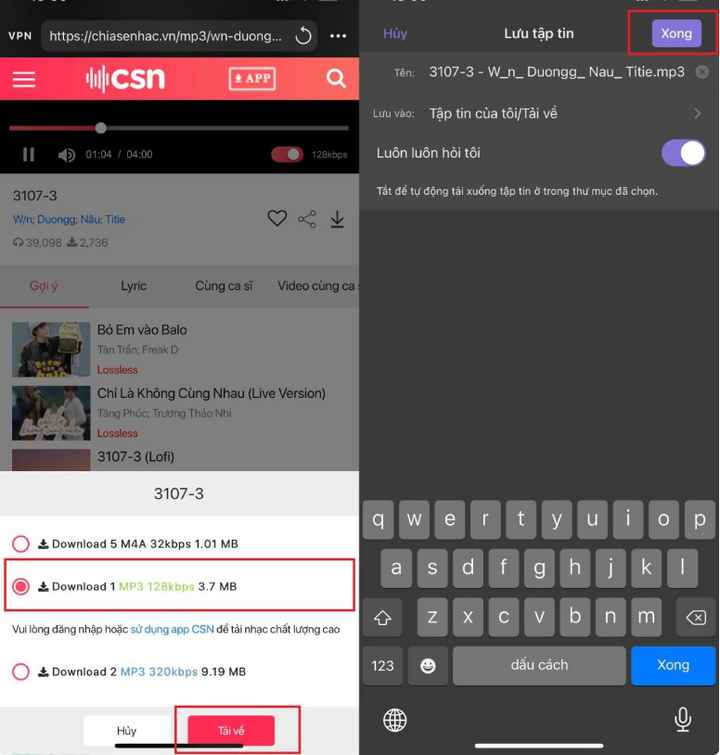
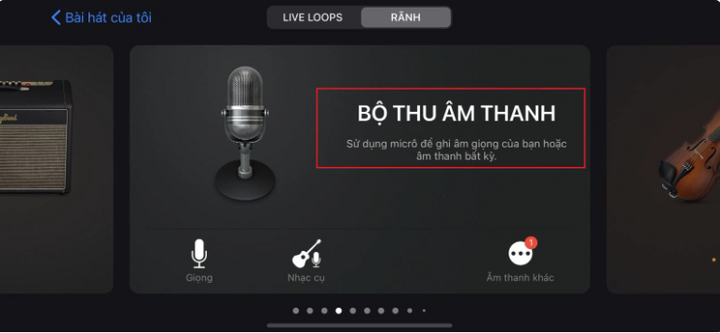
Step 3: Open the GarageBand app, swipe right, and select "Sound Player".
Step 4: A new interface will appear. Select the icon with three broken lines, and then select the Loop icon located in the upper right corner.
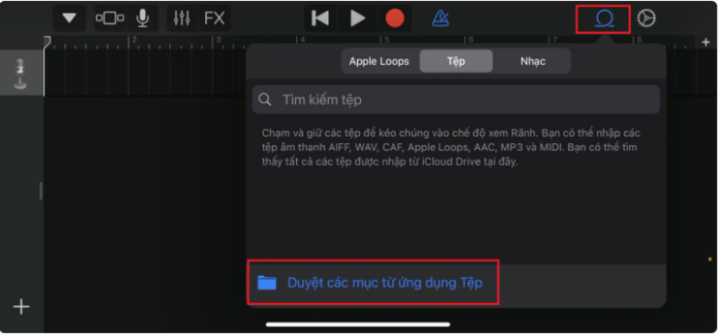
Step 5: Select "File", select "Browse items from the Files app", then select "Browse" and "Document".
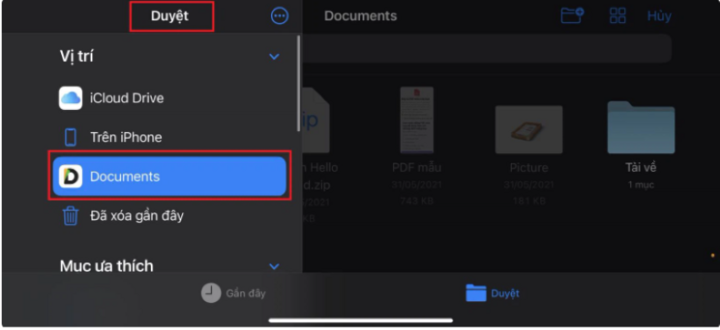
Step 6: Select "Download" and choose the song you downloaded in step 2, then drag the file into the editing area.
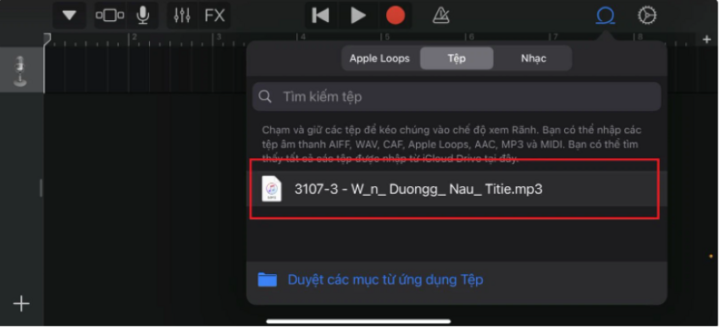
Step 7: You can easily adjust the song to select the section you want to use as a ringtone by dragging both ends. Then, select the triangle icon and choose "My Songs" to save.
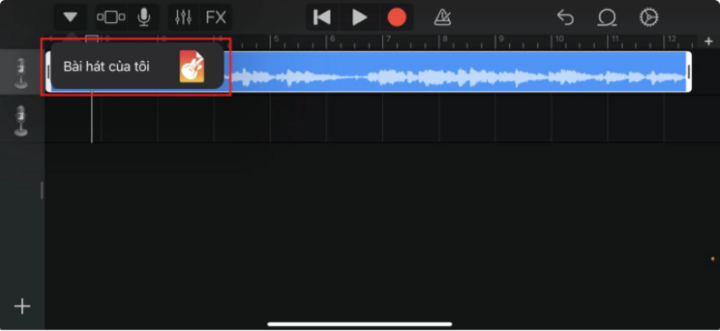
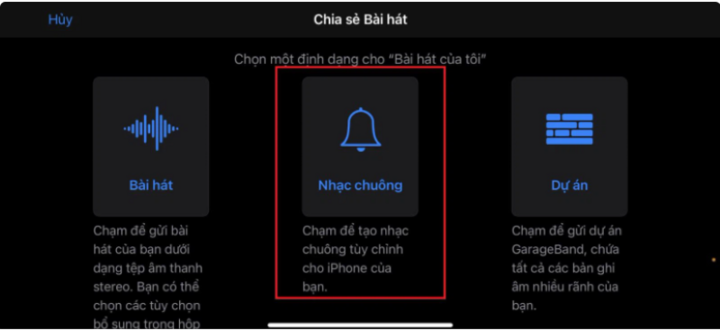
Step 8: Then, hold down on the saved song, select "Share," choose "Ringtone," and select "Export" to complete the process.
Above are two ways to set iPhone ringtones using your phone, which will be helpful for you. You can refer to them here. Good luck!
Source


![[Photo] Young people in Da Nang radiate the spirit of spring in traditional ao dai dresses.](/_next/image?url=https%3A%2F%2Fvphoto.vietnam.vn%2Fthumb%2F1200x675%2Fvietnam%2Fresource%2FIMAGE%2F2026%2F02%2F05%2F1770283565383_ndo_br_d7fd33c1bcc2329c6bd3-3439-jpg.webp&w=3840&q=75)



Comment (0)