

 |
To remove sun shadows using Photoshop on your computer, follow these steps:
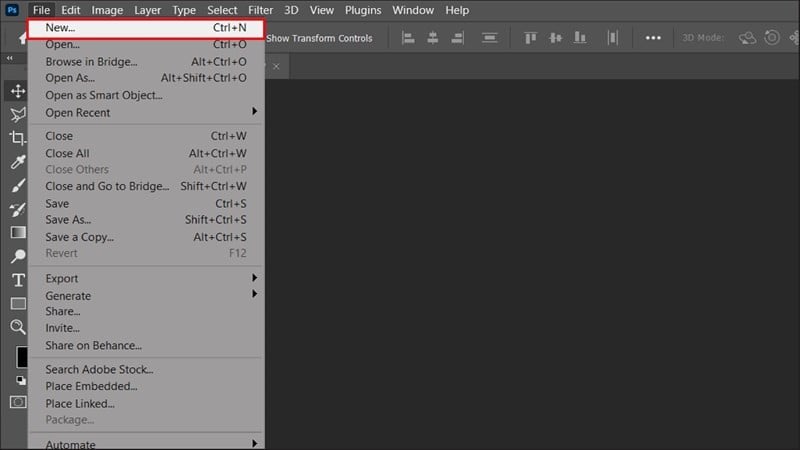
Step 1: Create a new Photoshop file by selecting File from the menu bar and clicking New, or by using the keyboard shortcut Ctrl + N to open a new file.
 |
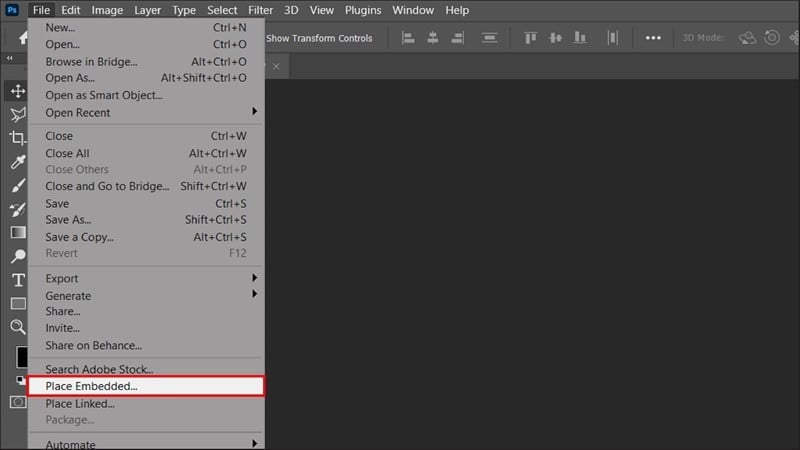
Step 2: After opening the new file, insert the image you want to convert into a watercolor painting by clicking on File, then selecting Place Embedded, and choosing the image from your library.
 |
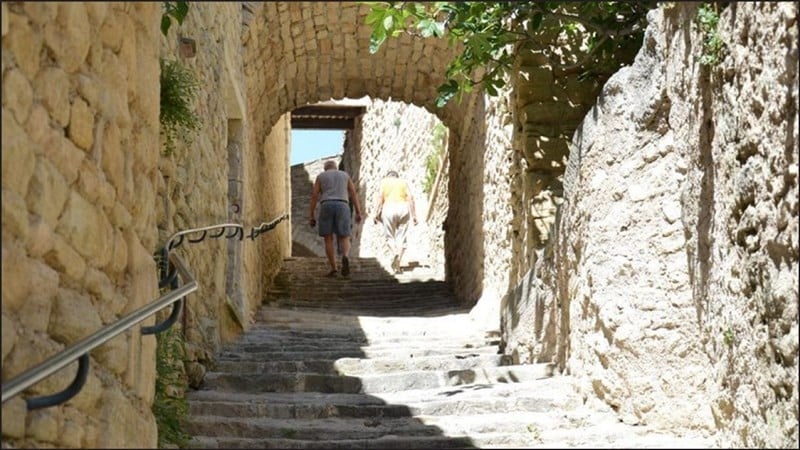
Below, I have successfully inserted an image into the Photoshop workspace.
 |
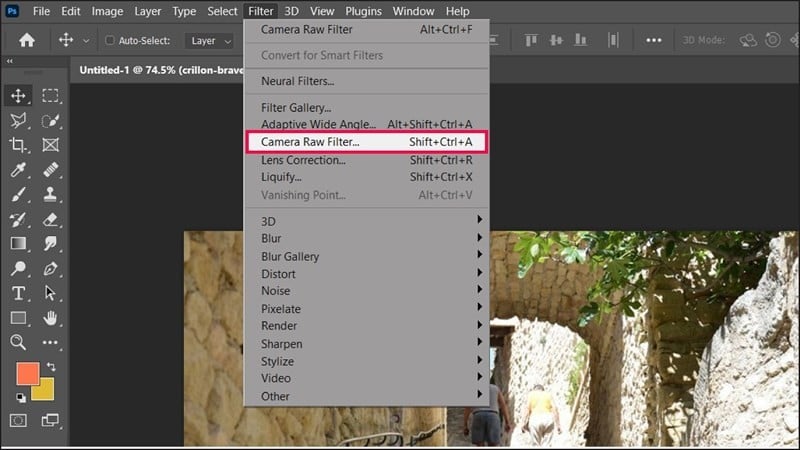
Step 3: After successfully inserting the image, on the Menu bar, select Filter and click on Camera Raw filter, or use the keyboard shortcut Ctrl + Shift + A to open the Camera Raw dialog box.
 |
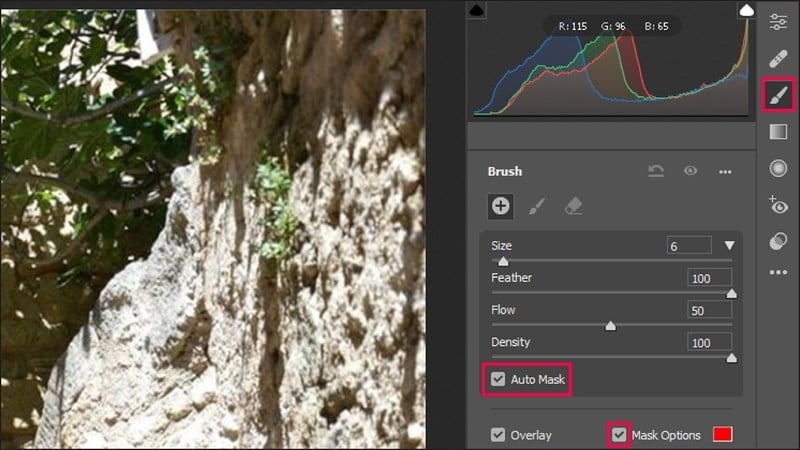
Step 4: When the dialog box opens, click on Brush (the pen icon). Then, check the boxes for Auto Mask and Mask Options as shown in the image below.
 |
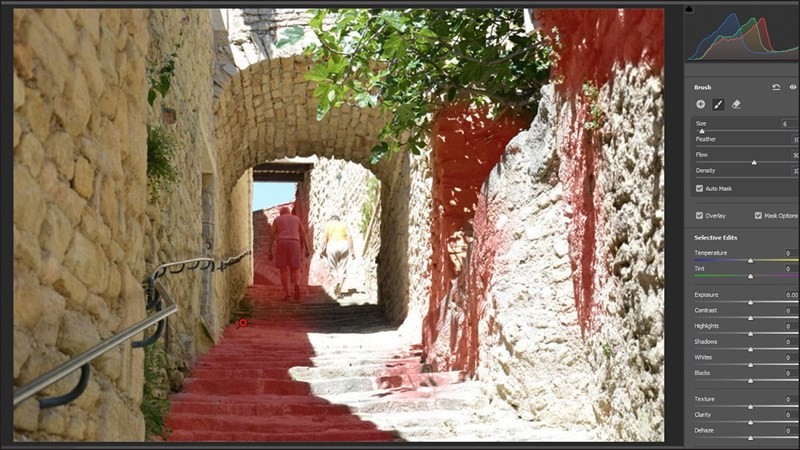
Next, use your mouse to select the shaded areas you want to remove. You will now see the areas you have selected because you have enabled Mask Options.
 |
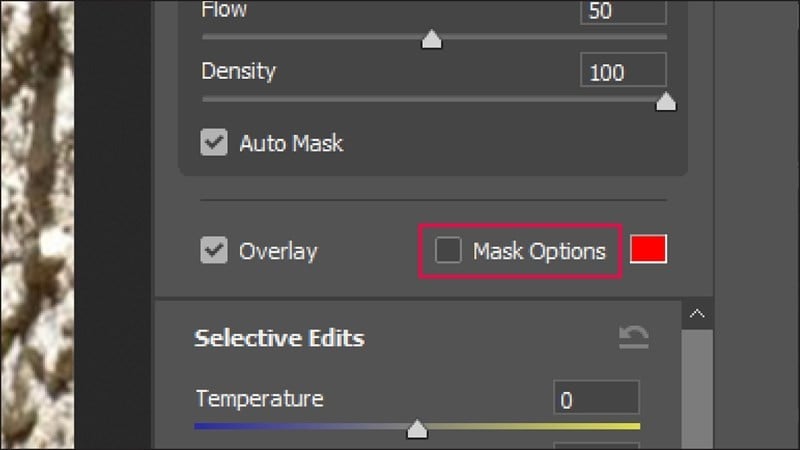
Step 5: Once you have colored all the areas you want to erase, turn off Mask Options to hide the selected shadow areas and begin erasing.
 |
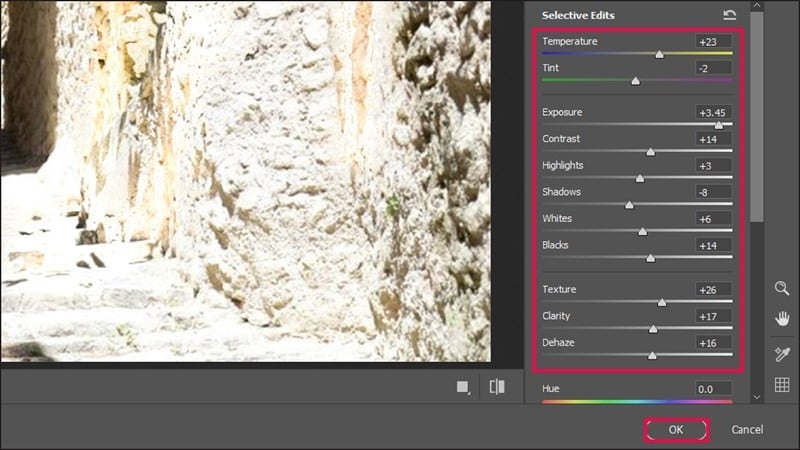
Step 6: Next, set the parameters as shown below to adjust the color of the sunlit areas so that they match the rest of the sunlight in the image. You can also set other parameters to suit your visual preferences for the entire photo. Once you have set the parameters, simply press OK to apply the Camera Raw effect to your work.
 |
Step 7: Next, create a new layer to remove the border separating the dark and bright areas (you can stop at this step if you are satisfied with your image).
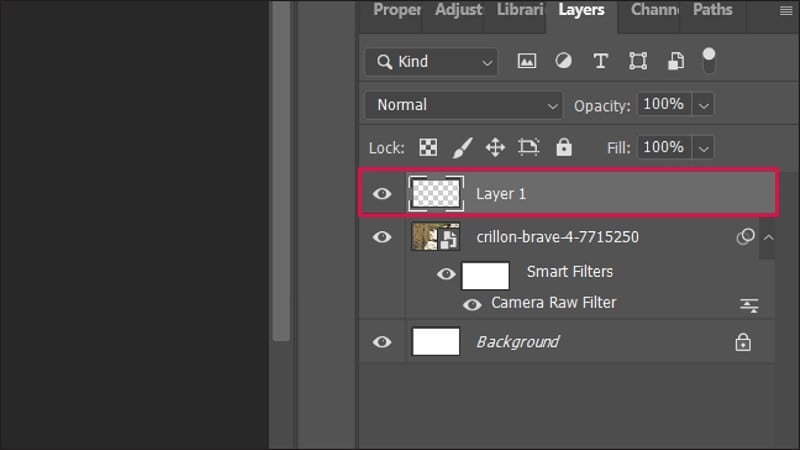 |
Here, on the toolbar, click the Healing Brush Tool to remove the edges, making the image look more realistic. Press and hold the Alt key and keep the mouse cursor at the desired lighting position to outline the dividing lines, and you're done.
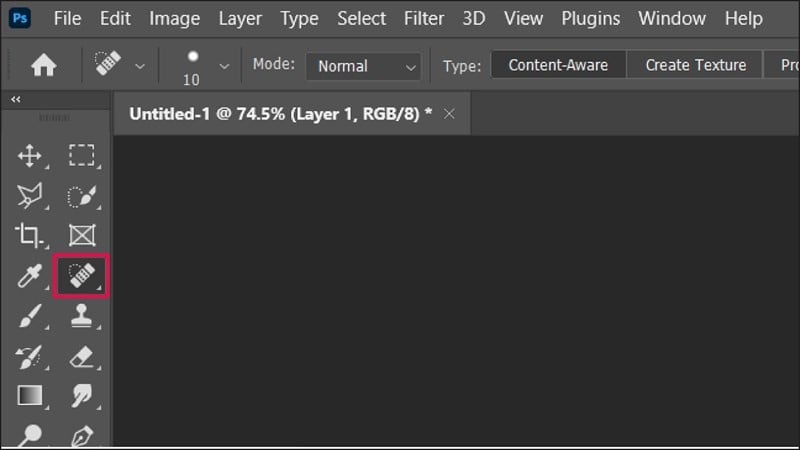 |
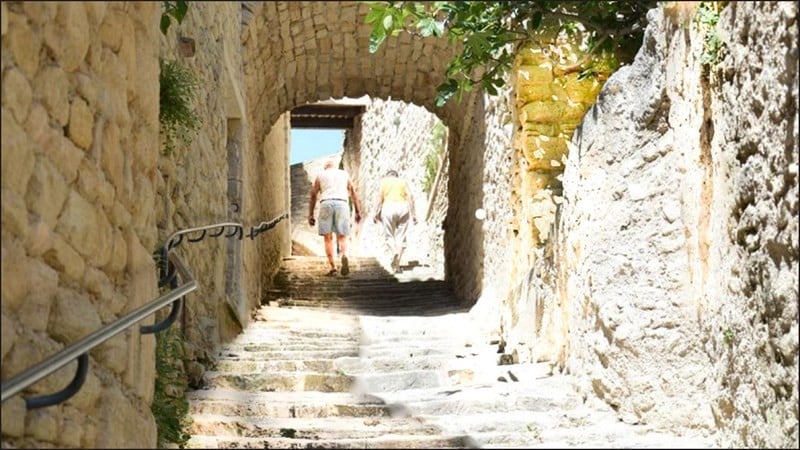
And here is the finished photo.
 |
The article above has provided detailed instructions on how to remove sun shadows using Photoshop with very simple and easy-to-understand steps. Thank you for reading.
Source
![[Photo] Prime Minister Pham Minh Chinh receives Lao Minister of Education and Sports Thongsalith Mangnormek](/_next/image?url=https%3A%2F%2Fvphoto.vietnam.vn%2Fthumb%2F1200x675%2Fvietnam%2Fresource%2FIMAGE%2F2025%2F12%2F16%2F1765876834721_dsc-7519-jpg.webp&w=3840&q=75)

![[Photo] Prime Minister Pham Minh Chinh receives the Governor of Tochigi Province (Japan)](/_next/image?url=https%3A%2F%2Fvphoto.vietnam.vn%2Fthumb%2F1200x675%2Fvietnam%2Fresource%2FIMAGE%2F2025%2F12%2F16%2F1765892133176_dsc-8082-6425-jpg.webp&w=3840&q=75)
![[Live] 2025 Community Action Awards Gala](/_next/image?url=https%3A%2F%2Fvphoto.vietnam.vn%2Fthumb%2F1200x675%2Fvietnam%2Fresource%2FIMAGE%2F2025%2F12%2F16%2F1765899631650_ndo_tr_z7334013144784-9f9fe10a6d63584c85aff40f2957c250-jpg.webp&w=3840&q=75)
![[Image] Leaked images ahead of the 2025 Community Action Awards gala.](/_next/image?url=https%3A%2F%2Fvphoto.vietnam.vn%2Fthumb%2F1200x675%2Fvietnam%2Fresource%2FIMAGE%2F2025%2F12%2F16%2F1765882828720_ndo_br_thiet-ke-chua-co-ten-45-png.webp&w=3840&q=75)













































![[Photo] Prime Minister Pham Minh Chinh attends the Vietnam Economic Forum 2025](https://vphoto.vietnam.vn/thumb/402x226/vietnam/resource/IMAGE/2025/12/16/1765893035503_ndo_br_dsc-8043-jpg.webp)





















Comment (0)