


According to BGR , the report states that the attackers then quickly used the iPhone password to gain control of the Apple ID by setting up a new security key, essentially blocking the victim from their own Apple account.
Afterward, the attackers can use the device to make purchases with the victim's card until it is deactivated. More importantly, they can completely erase the phone's data and sell it because the victim's Apple ID can no longer prevent the phone from being reactivated.
Currently, Apple has not yet implemented any measures to counter this type of attack by thieves. Therefore, the best course of action for users is to apply defensive measures with the two settings suggested below.
Set up a strong password with Face ID.
If you haven't set up Face ID and a passcode for your lock screen, a thief can access your phone the moment they touch it. Therefore, the first thing users should do when setting up an iPhone is to enable Face ID and create a strong passcode that is longer than 6 characters.
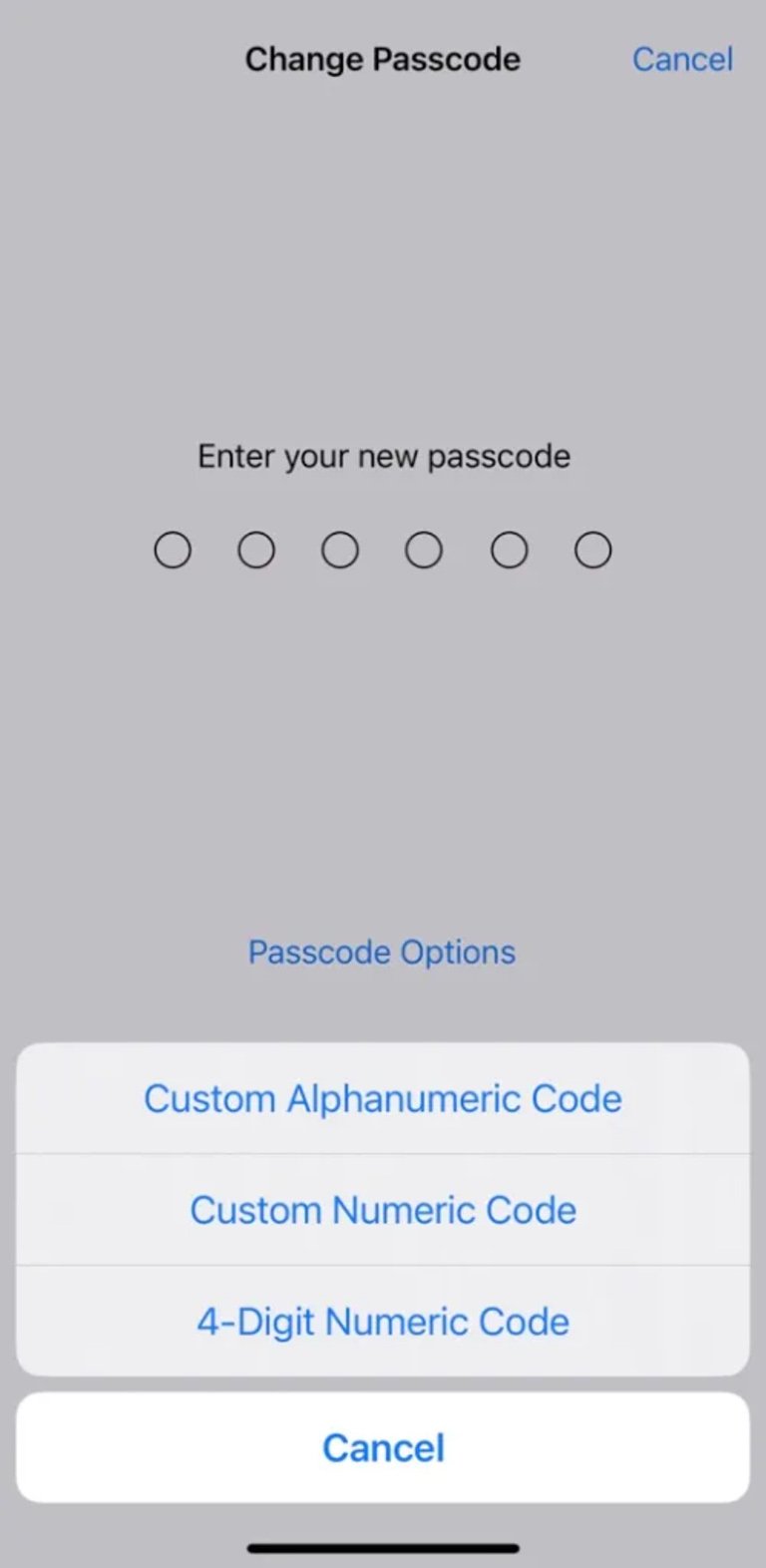
Use Custom Alphanumeric Code to enhance security.
Next, ensure users always use Face ID when out and about. If the first authentication attempt fails, try again instead of entering the password in public. Also, change that password occasionally if users think someone else knows it.
Because using 6 digits is very easy to remember, users should follow these steps to set up a strong alphanumeric passcode on their iPhone to prevent malicious actors from remembering it: Open the Settings app > Face ID & Passcode > enter your current passcode and select Change Passcode. Verify the old passcode but do not enter the new 6-digit passcode; instead, tap the Passcode Options menu button at the top of the keypad and select Custom Alphanumeric Code. Now, set a strong passcode.
Use ScreenTime to prevent Apple ID hijacking.
Assuming the password isn't strong enough even if it's longer than 6 characters, to prevent a thief from stealing an iPhone and accessing the Apple ID and using the phone's security lock, the user needs to block Face ID access unless they know the ScreenTime password.
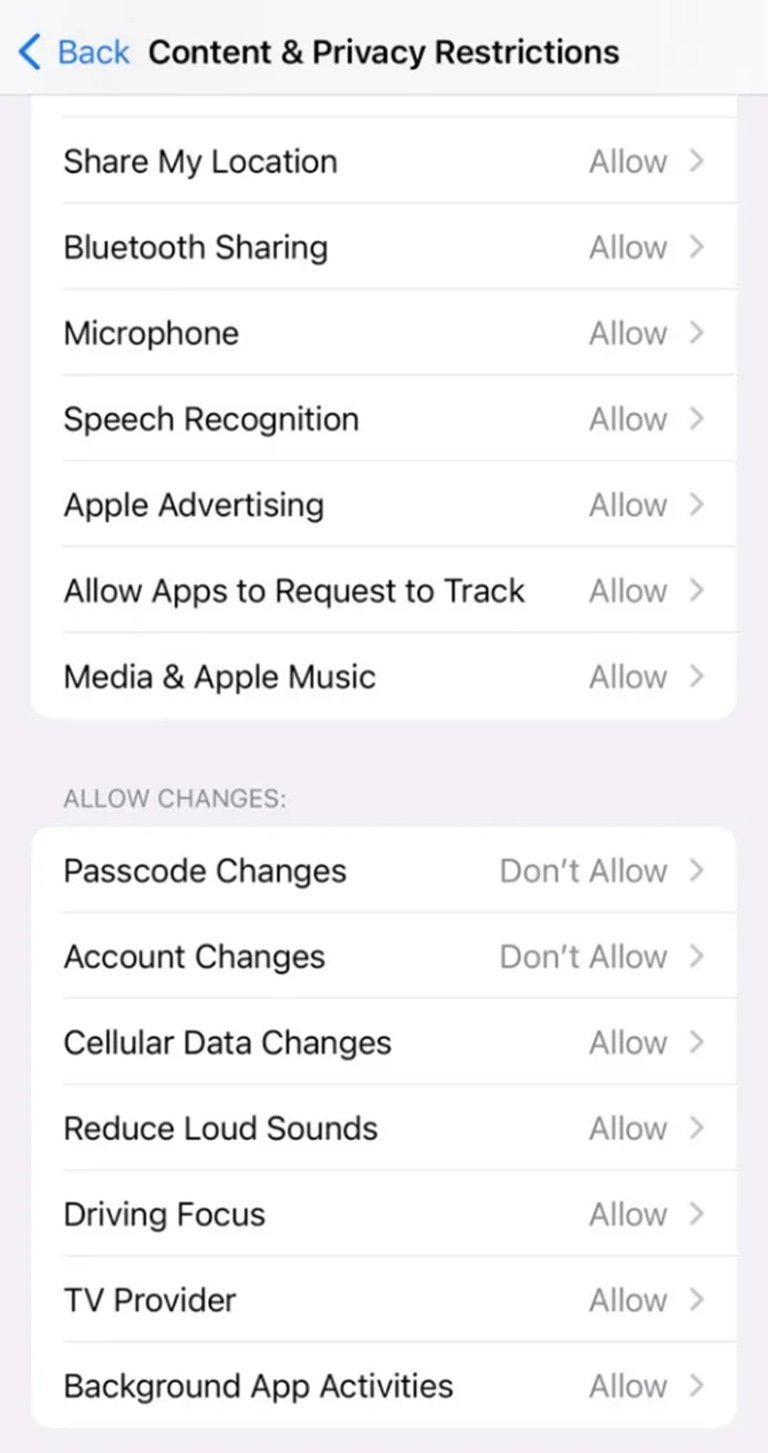
Screen Time is also a powerful weapon for protecting users.
This is a great security feature that users should take advantage of. To do this, open the Settings app > Screen Time. Scroll down to set a password for it and make sure you remember it. Enter your Apple ID login information so you can recover your Screen Time password if you forget it. Go to Content & Privacy Restrictions and turn on Content & Privacy Restrictions, scroll down to Allow Changes. Tap Account Changes and select Don't allow. You can also block password changes at this step.
When this setting is enabled, users can no longer access their Apple ID on their iPhone unless they repeat the steps above to allow changes to their account. Blocking passcode changes also removes the Face ID & Passcode menu from the Settings app, so thieves cannot change the phone's password.
Source link




































































































Comment (0)